
Build the card
Watch how an invitation is made
Pick a category and watch the example.
Regenerate
Ask for a change and it redraws
A dinosaur birthday. We ask for one more dinosaur and the image regenerates while keeping the rest of the scene.
A concrete tweak: one more dinosaur, same party.
Layers
Split and move each piece
The same card opens into layers. Grow or shrink dinosaurs, balloons, or the background, each on its own.
Each layer can grow, shrink, or move without redrawing the whole invitation.
Send
Send and track RSVPs
The video shows invitations going out and the guest list with delivered, read, and who confirmed. Below, the steps to link WhatsApp.
Simulation: this is how sends and RSVPs look in Invita.
How to link WhatsApp
On your phone you can’t scan the QR. You generate a code and paste it in WhatsApp.
Don't scan the QR. Generate the code here and paste it in WhatsApp, under Link with phone number.
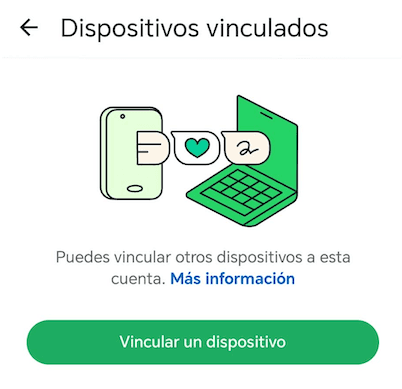
1. Linked devices
In WhatsApp open Settings and tap Linked devices.

2. Link a device
Tap the green Link a device button.
3. At the bottom, not the QR
On the scanner screen, Link with phone number is in the footer. Tap that.
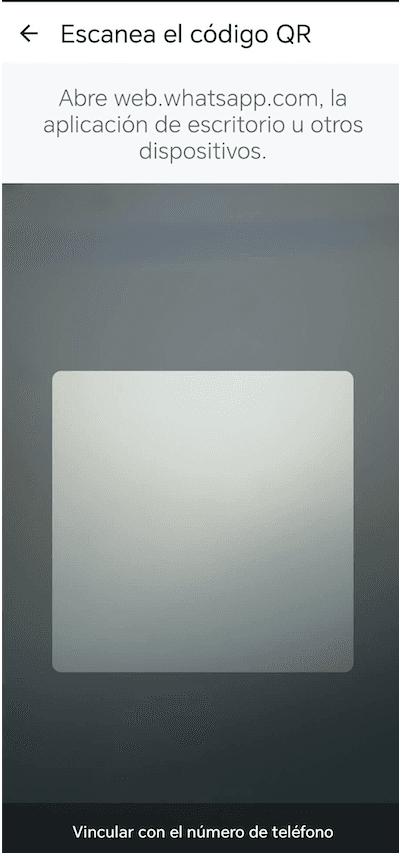 Link with phone number — bottom of the screen
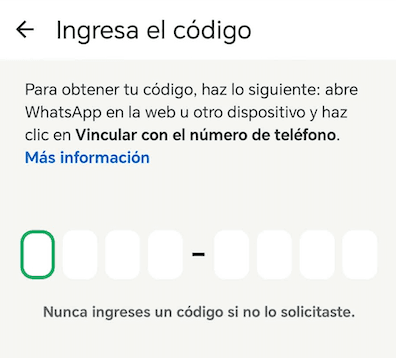
4. Paste the code
Type the 8-digit code we show in invita.
Create my event